

Showing posts with label hardware. Show all posts

The best computer for video editing in 2019

If you're searching for the best computer for video editing, we can help. In this guide, you'll find our pick of the best video editing computers right now – at a range of different price points – to help make your footage sing, whatever your skill level.

If you're editing videos, you'll need a powerful computer so that it doesn’t lag when dragging audio and video clips, exporting, rendering and finalizing the mountain of footage that you’ll accumulate. This is especially true when working with high-definition video.

We’ve picked out some of the top Windows PC and Mac computers for video editing, with a focus on both some of the most powerful workstations on the market today, as well as some options if your budget is more limited. Read on for the best computers for video editing...

01. 21-inch Apple iMac with Retina display (2019)

The best computer for video editing
CPU: 4-6 core Intel Core i3 / i5 / i7 | Screen: AMD Radeon Pro 555X / 560X / Vega 20 | Graphics: 8GB - 64GB | RAM: 8-64GB | Storage: Hard Disk / Fusion Drive / 256GB - 1TB SSD | Ports: 4x USB-C (Thunderbolt) , Ethernet | Size: 52.8cm (w) x 45.0cm (d) x 17.5cm (h) | Weight: 5.66kg | OS: MacOS

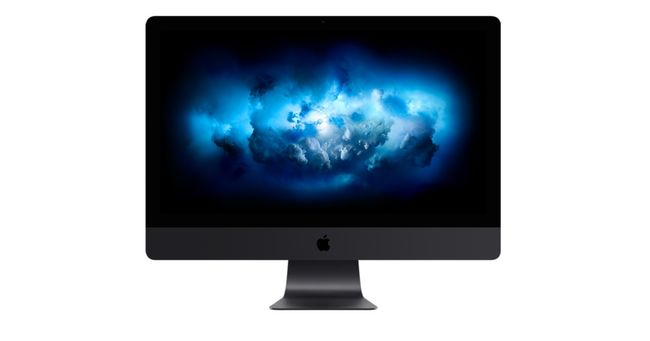
We think the best computer for video editing right now is the 21-inch Apple iMac with 4K Retina display (2019). Now sporting six and eight-core 9th-generation Intel processors, the 2019 iMac has received the most significant update since Apple added a Retina display to the specification, making it a video editing powerhouse.
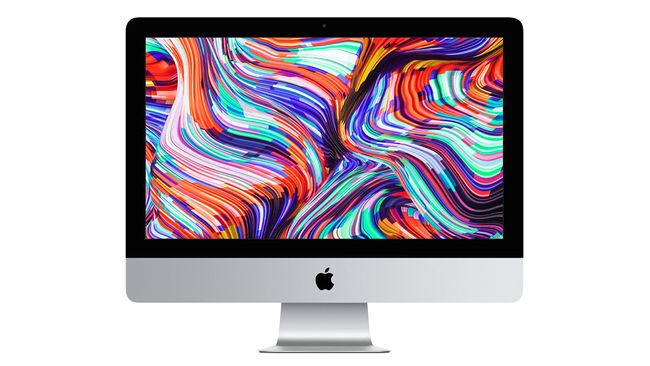

Of the two available screen sizes, the 21.5-inch Retina iMac represents a better overall combination of value and performance than the larger 27-inch model. You get an extremely high quality, bright 4K Retina (4,096 x 2,304) display with a quad-core processor and AMD Radeon Pro 555X graphics card, that’s absolutely great for video editing. Choice upgrades would include adding some more memory and swapping the 1TB hard disk for an SSD, while a six-core processor is also available.

02. Microsoft Surface Studio 2

A brilliant Windows all-in-one
CPU: Intel Core i7-7820HQ | Screen: 28-inch 4500x1300 resolution IPS display | Graphics: Nvidia GeForce GTX 1060 6GB -GTX 1070 8GB | RAM: 16-32GB | Storage: 1-2TB SSD | Ports: 4xUSB 3.0; 1xUSB-C; SD card slot; Gigabit Ethernet; 3.5mm headphone jack | Size: 63.7cm x 1.3cm x 43.9cm x 1.3cm (WxDxH) | Weight: 9.56kg | OS: Windows 10

Unlike Apple’s iMac all-in-one, a touch-sensitive 28-inch display (4,500 x 3,000) display is the centerpiece of Microsoft’s Surface Studio 2, letting you drag and drop video clips with a finger as well as a mouse. It comes with a hinge that lets you flip the screen all the way down to edit video and it can be used with a pen for drawing too.
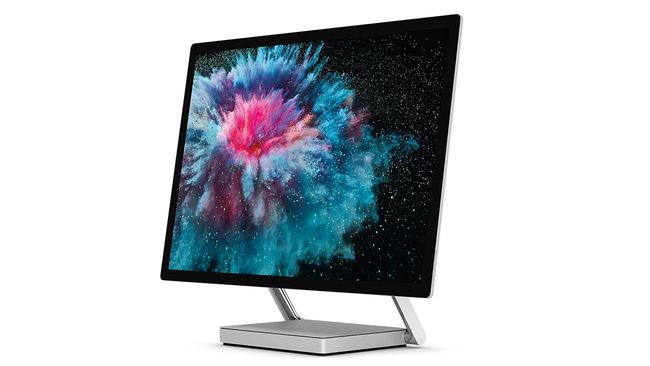

Microsoft needs to update the Surface Studio with more modern CPUs, but it makes up for it with some serious graphics grunt powered by Nvidia, with a GeForce GTX 1070 available that will provide some serious visual power.

03. Mac Mini (2018)

Powerful, small and great for video editing

CPU: 4-6 core Intel Core i3 / i5 / i7 | Screen: Not included | Graphics: Intel UHD Graphics 630 | RAM: 8-64GB | Storage: 128GB-2TB SSD | Ports: 4x USB-C (Thunderbolt) , 2x USB 3, Ethernet, HDMI | Size: 19.7cm (w) x 19.7cm (d) x 3.6cm (h) | Weight: 1.3kg | OS: MacOS

We love the Mac Mini’s flexibility and diminutive form factor, so we’re really pleased to see Apple updated it with a modern specification and a new 'space grey' color late last year. It is still one of Apple’s most affordable computers (relatively speaking) and now it’s capable of a lot more, including video editing. Pair it with one of the best monitors for video editing for a great setup.
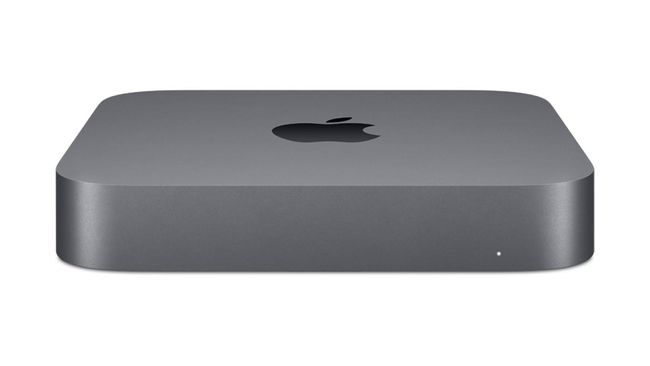

The base model features a quad-core processor, 8GB of memory and a (paltry) 128GB SSD. All of these can be upgraded, with an optional six-core processor and a larger SSD for even high-end video work. But with a bit of tinkering, you can upgrade the memory yourself for less money than Apple charges, and there are six expansion ports at the back for either USB or Thunderbolt external storage.

04. HP ENVY 795

HP’s slick micro-desktop has the guts to edit video
CPU: 3.5 GHz six-core Intel Core i7 - 3.3GHz 10-core Intel Core i9 | RAM: 8GB - 64GB | Ports: 6 x USB 3, 1x USB-C, 2x USB 2, DVI, HDMI Ethernet, SDXC | Size: 37cm (w) x 15.4cm (d) x 36.5 (h) | Weight: 8.86kg | OS: Windows 10

With an 8th-generation Intel processor, HP’s silver-fronted Envy desktop PC is a box with more than a few tricks up its sleeve. The range is absolutely great for mid-range video editing, as the Nvidia GeForce graphics card can help out with various processing tasks, such as applying visual filter effects, while the main six-core CPU does much of the hard work.
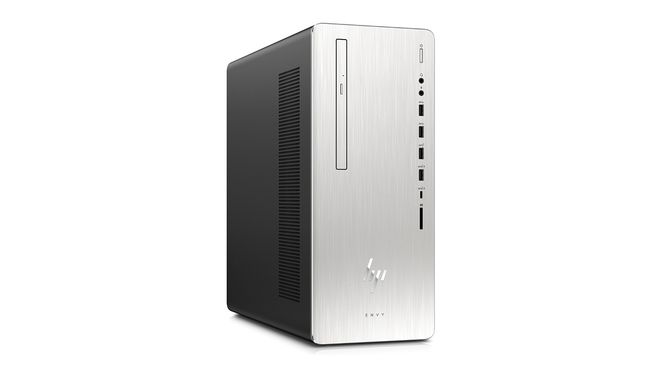

We’d pick the slightly pricier 16GB option (or perform a memory upgrade) for more demanding video editing tasks, but as it carries an asking price that won't break the bank, this is a great all-rounder family computer with enough performance to cope with video editing well.

05. Dell XPS 27 AIO

A powerful all-in-one PC for video editing
CPU: Intel Core i5-7400 – Core i7-7700 | Graphics: Intel HD Graphics 630; AMD Radeon RX 570 | RAM: 8GB – 32GB | Storage: 1TB HDD – 2TB SSHD; 512GB SSD | Display: 27-inch 4K (3,840 x 2,160) display.

The Dell XPS 27 AIO is another PC that may stretch the budget, but hear us out. This astonishing all-in-one from Dell comes with a mighty 27-inch 4K Ultra HD touchscreen display and an ear-busting set of six speakers. That makes for the ideal platform from which to view – and hear – what you've shot and got the best from it in post-production.
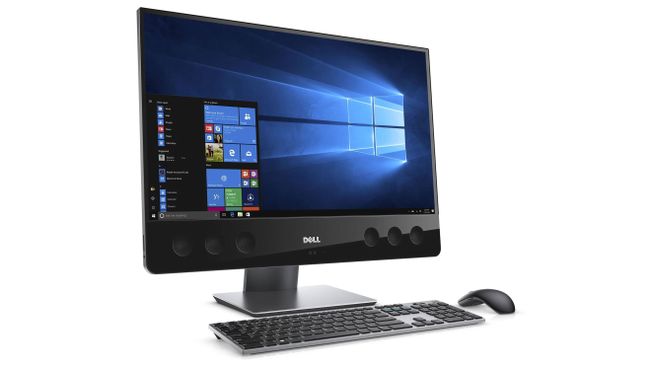

The Dell XPS 27 performs admirably against industry-standard graphics-based benchmarks, no doubt thanks to the pacey 3.6GHz Intel Core i7-7700 processor under the casing. And this premium machine also gets premium peripheries in the form of a sleek and stylish wireless mouse and keyboard.
Share:

Apple Pro Display XDR monitor

Apple’s just made a monitor that costs $4,999 – and you can spend a further $999 to attach a fancy stand to it. However, the brand is claiming that its new Pro Display XDR monitor is going to save the creative industry reams of time and money, offering some key features that are only available on reference monitors many times its price.

Read our news story on the release of the Pro Display XDR monitor for more about the upcoming release, and if you're looking to bag a bargain on a non-Apple monitor, then don't miss our post on what to expect from Amazon Prime Day, but here, we get up and close and personal with Apple's new monitor. Just how good is the Apple Pro Display XDR in real life?

Pro Display XDR: key features

Let’s explain something off the bat: XDR stands for Extreme Dynamic Range, as it ‘goes beyond’ the traditional world of HDR.

That’s made possible by two key elements: a backlight array of custom-tuned blue LED lights that will locally dim on the screen to offer real contrast between dark and light scenes. They’re so bright that they’re capable of running at 1000 nits indefinitely, and can boost up to 1600 nits.

That’s a pretty impressive number – and to keep the display pumping out such high brightness, allowing video content to be assessed frame by frame without a drop in performance, Apple has designed an innovative heat sink on the rear.

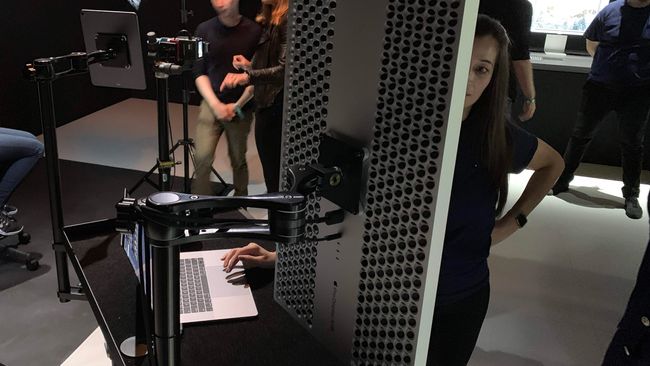
The small, round ‘bubbles’ on the back are made in such a way that they disperse the heat more efficiently than ever (although, visually, they appear to be more like a cheese grater).

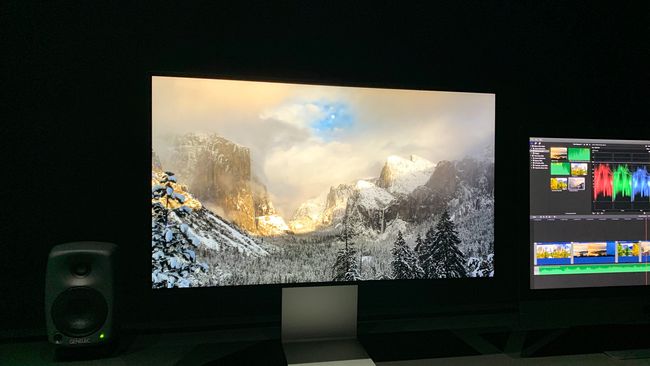
The brightness and HDR capabilities of this 32-inch monitor are, indeed, impressive in real life – the 6016 x 3384 resolution is so pin sharp that even practically pressing your nose to the display yields little in the way of pixelation.


We looked at the monitor next to a ‘normal’ one and the difference in brightness and colour reproduction was stark. Of course, Apple was using imagery that it knows will show off the performance of the Pro Display XDR well (we viewed the live video of the traditional Mac wallpaper mountains), but the HDR quality was truly impressive.

So were the contrast ratios here – looking at a recently-snapped photo from a studio showed incredible clarity for a high-resolution photograph, with the image appearing very close to the glass on the screen.

Even viewed off angle, the picture quality remained and was easy to see – Apple said it had worked hard on the anti-reflective coating and the sideways viewability of the monitor, and it really showed.

The colour reproduction here is 10-bit and P3 wide gamut, and a couple of creative artists we spoke to were gushing about the sheer depth of colour available on the new Pro Display.

The image we saw was purposely oversaturated, but for those grading colour, this is going to be a monitor that can really stun. We doubt it will be as good as a ‘true’ reference display, given it’s around eight times cheaper, but we can’t help but feel it will get awfully close in a number of key areas. If you want a quality monitor for photo editing, this is looking to be a very worthy contender.

Pro Display XDR: Design and build

The Pro Display XDR is a little boxy and angular in design – it’s brutal in its angles, but the thinner bezel does really help enhance the look.


You can chain up to six of these monitors together from the new Mac Pro, and that thinner bezel will help make it easier to use multiple options at once.

The $999 stand was something we didn’t get to check out, although we did get to see an exploded diagram of what was inside – and it’s another feat of engineering in there. Whether that’s going to be worth nearly a thousand dollars to anyone outside of a high-end design studio, remains to be seen.

Even though it’s supposed to have incredible counterbalance and be lightweight to use (Apple wouldn’t let us touch the display), it still will need to be hugely useful to justify that price tag.

Pro Display XDR: Early thoughts

It’s pretty likely most creative professionals will want the Pro Display XDR, simply because it looks slick, has a clean sharpness to the screen and is brilliant at colour reproduction. The HDR modes really add something to the mix in terms of performance, with the peak brightness combining will with dark blacks washing all around.

The price will, obviously, stop many in their path to buying this machine as it’s more expensive than most high-end PCs out there – see our pick of the best computers for graphic design for other options for a range of budgets. But the large 32-inch visage, combined with the enhanced sharpness 6K brings, means you’ve got a lot of real estate to play with for your latest project – we just need to stack it up next to a true reference model to see how it measures up.
Share:

New Mac Pro has been sent to bankrupt us

A new Mac announcement from Apple is always going to generate interest, but a new Mac Pro is something else entirely. They don't come along very often; the last one was the beautiful but divisive 2013 model, shaped like a trash can and ultimately a bit of a bad idea as its lovely compact build made it a nightmare to maintain and upgrade.


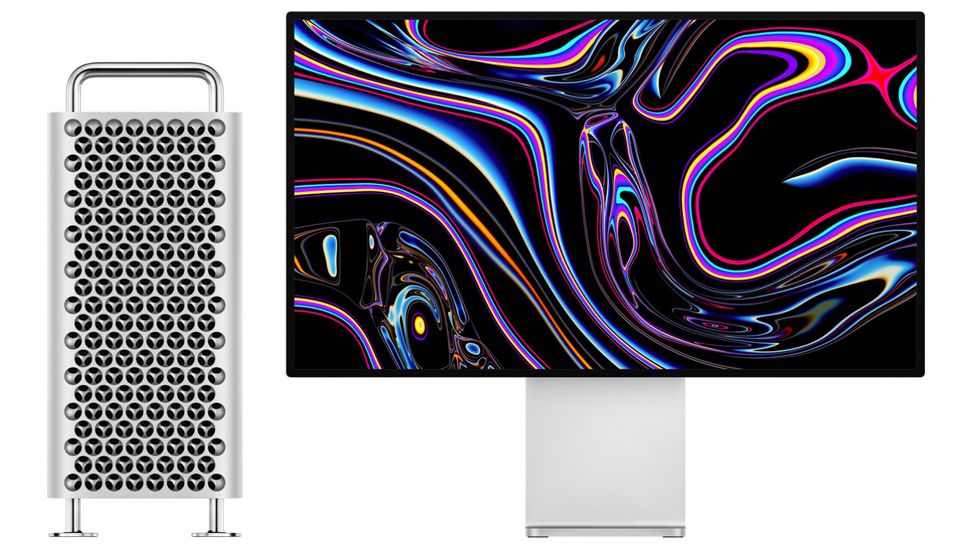
Now, though, Apple has revealed the latest Mac Pro at WWDC 2019, and it's an absolute beauty at a price that's going to horrify you. And there's no sign of any great Amazon Prime Day deals to make it easier to swallow either.

But coming on like a revamped version of the now-classic G5 Mac that, combined with OSX, really started to turn things around for Apple in the pro desktop business, it's a joy to look at. And if the specs are anything to go by, we expect it'll make the cut on our best computers for graphic design in the very near future. 


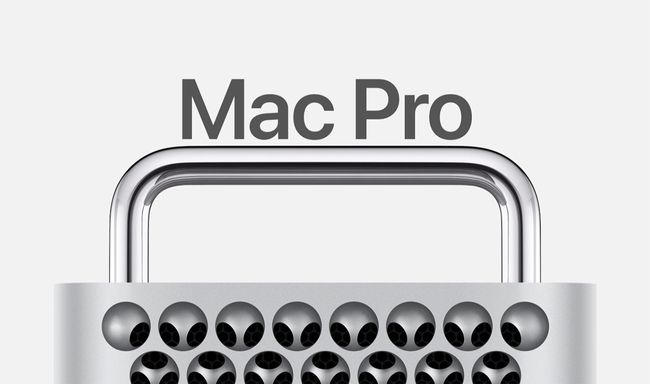
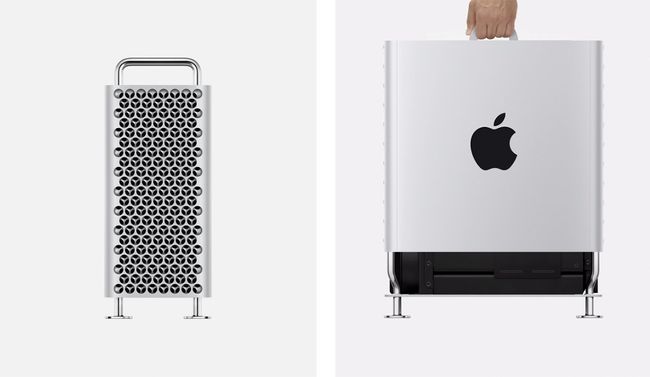
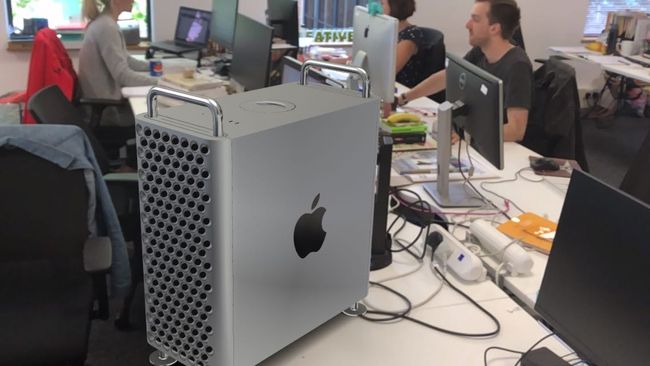
The focal point of the new Mac Pro is its aluminium housing that lifts off for easy access to the internals (more on those in a bit), and features a chunky latticed grille that's all about providing maximum airflow to keep things cool and silent, and which also looks fantastic. Beneath the housing is a stainless steel chassis with feet that can be replaced with wheels if you like.

The return to a traditional tower build means that there's plenty of room inside for expansion, with a whole eight PCI Express slots plus 12 DIMM slots providing the option of plugging in up to 1.5TB of memory. And if that sounds insane, we're only just getting started.

The base spec of the new Mac Pro is ludicrously powerful: it comes with an 8-core 3.5GHz Intel Xeon W CPU, 32GB RAM and an AMD Radeon Pro 580X GPU with 8GB GDDR5 memory capable of driving up to six 4K displays. Let's be honest, it's a lot more power than the average creative needs; it's for people editing 3D movies in 8K rather than running Photoshop CC, and it'll cost you $5,999 (there's no word on the UK pricing yet but we somehow doubt you'd get much change from £6,000).


The really exciting, thing, is just how much more power you can plug into this thing. As well as the potential for that 1.5TB of memory, you can also have up to a 28-core, 2.5GHz version of that Xeon W processor, and using Apple's new MPX Module system to double up GPUs, you can also have four AMD Radeon Pro Vega II Duos on board, cable of running 16 4K displays, eight 5K displays or eight of Apple's new Pro Display XDR displays, which we'll get to in a bit. In short, when it comes to power and price tag, the sky seems to be the limit.

This is heavyweight hardware aimed at professionals working in 3D, film and video, and there's one last feature included to make life even easier for them. The Apple Afterburner is an additional hardware accelerator that supports playback of up to 3 streams of 8K ProRes RAW or up to 12 streams of 4K ProRes RAW video, enabling you to edit natively in both resolutions.

To make the most of all this serious graphics hardware, Apple has also introduced a top end display to go with it. The Pro Display XDR is touted as the world's first 32-inch 6K display, and it looks like a must-have for anyone who has to have the best visual fidelity. It has a 1,000,00:1 contrast ratio and 1,000 nits sustained brightness, peaking at 1,600, with 10-bit colour depth and P3 wide colour gamut. It features a superwide viewing angle and minimal glare thanks to nano-textured glass, and its back has the same machined lattice as the Mac Pro, again for airflow reasons.

The Pro Display XDR (it stands for Extreme Dynamic Range) will set you back an eye-watering $4,999, and that's before you've factored in the matching Pro Stand. It's a fully counterbalanced stand that, says Apple, makes the Pro Display XDR feel weightless and makes it easy to adjust the the height, tilt and even rotation of the display, enabling you to switch from landscape to portrait in an instant. It sounds impressive, and it really ought to be at an additional $999.


Both the new Mac Pro and Pro Display XDR are scheduled to launch in the autumn, but if you want to know how they'd look on your desk if you could scrape together the just under 12 grand you'd need to own the complete kit, there's a special treat waiting for you on the Apple site.
Share:

Switch from Mac to Windows: A 3D artist's guide

Since the dawn of the personal computer, a battle for platform supremacy has raged between macOS and Windows. While Windows is the dominant force in nearly every area of business, Apple and its macOS has for a long time been the weapon of choice for creatives.

While there are now better reasons for staying entrenched on macOS, there are still a large number of reasons to consider a switch to Windows – or at the very least operating a hybrid environment. In this article, we'll take a look at what Windows has to offer digital artists.

Not sure whether to switch or not? Take a look at our guide to the best computer for designers to help you decide.

Windows versus macOS

Fundamentally, a computer is a tool, and if you're creating digital or 3D art or video work, you'll need bespoke tools crafted to your specific needs. That means a fast pen-enabled, multi-core CPU for modeling tasks, and enough graphic card grunt to make the most of the latest generation of GPU-accelerated workflows and render engines.

With the launch of the iMac Pro, the i9 MacBook Pro, the new, more professionally focused
Mac mini and potentially a new modular Mac Pro on the way, Apple has stepped back into the professional marketplace. However, this impressive hardware does come at a price – both financially and in terms of potential upgradeability.

That said, the iMac Pro still a very compelling option for a large number of digital content creators. With Thunderbolt 3 and solid external GPU support now key parts of macOS, can this new push by Apple make macOS-based 3D artists ignore the pull of Windows?

Windows: The pros

As an artist who has used a mixed Windows and macOS environment for my professional work for the past four years, I can offer some insight to macOS users who might want to make the switch.

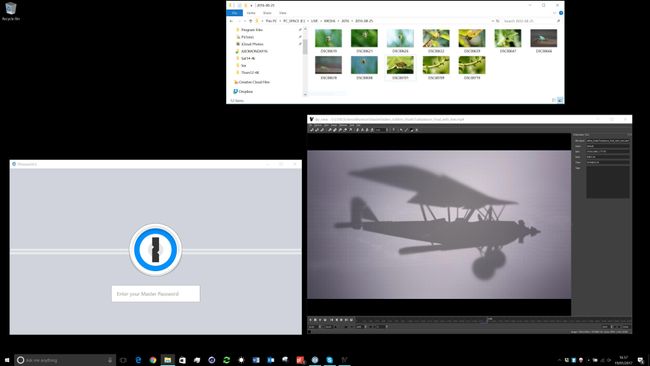
Let's start by concentrating on the good points about Windows. First of all, app switching is, on the whole, pretty painless. Most software is now tied to the user and for all the big names – Cinema 4D, Maya, the Substance suite and Adobe's Creative Cloud suite – you can access your account by simply logging in and downloading the Windows version. It's the same with most plugins.

The second benefit of Windows is its speed – I have always found viewport performance in 3D apps to be superior on Windows to Mac.


As for Windows itself, Windows 10 is very solid, and Windows Explorer is more 'malleable' than the Finder in Mac OS. There is also a raft of solutions available to make Windows feel more Mac-like, such as the FastPictureViewer codec, which shows thumbnails for a huge range of image formats, and DJV, which can act as a good media player.

If you're worried about losing access to your favourite productivity applications, fear not – a lot of previously Mac-only apps are now available for Windows. For example, I have depended on 1Password to hold of all my password details for years; with the 1Password account feature my Windows PCs, iOS devices and Macs are now all synced.


Then there is the hardware itself. 3D and video artists are dependent on power, and a decent GPU-enabled desktop can be bought for the fraction of the cost of a Mac with equivalent power.

GPU render engines such as Redshift and Octane are better tuned to Windows at the moment, and the latest macOS only supports AMD graphics cards as Nvidia has not yet released drivers for MacOS 10.4 Mojave. If your video editing software is dependent on Nvidia-powered GPUs for CUDA acceleration – common both in 3D render engines and video editors – using a Windows machine is currently the only option.
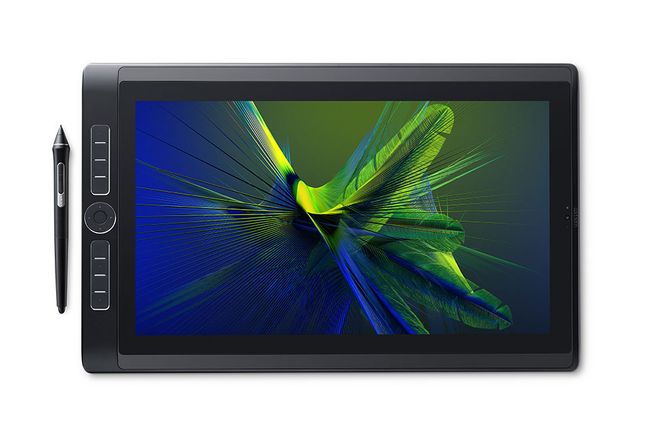
The biggest advantage to moving to Windows is that there is a much wider choice of form factors available to you: everything from touchscreen laptops to enormous 12 GPU card-equipped desktops and tablet computers that are capable of any 3D work you want to throw at them. The odds are, there is likely to be a Windows machine that could suit a bespoke working environment more readily than a Mac.

Windows: The cons

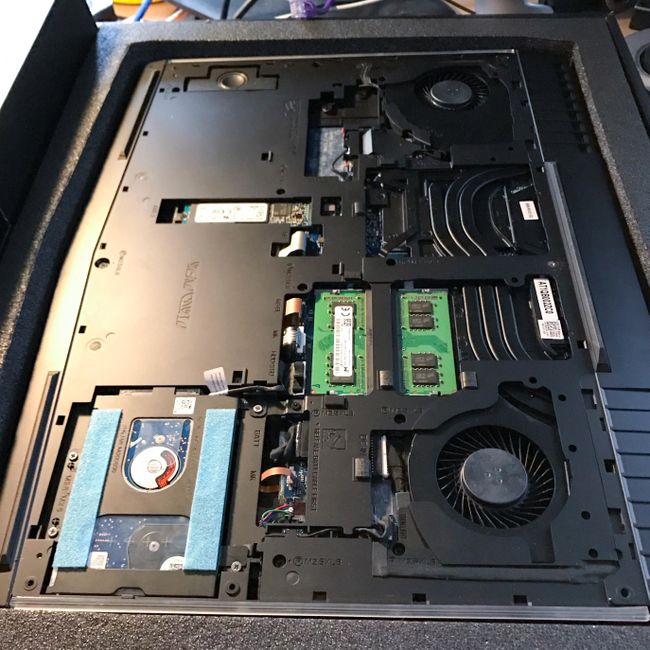
While on the surface, performance, value for money and configurability all seem like obvious wins for Windows, there are potential downsides to consider. Until relatively recently, Microsoft didn't make its own hardware, and compared to macOS, a Windows machine can still can feel like a selection of parts and drivers.

There is not the hardware quality, consistency and the reliability of a Mac (especially for those of us who have access to an Apple Store). The macOS still 'looks' better out of the box, and has a lot of helpful bundled applications, including Preview, QuickTime player and the excellent Finder preview, quicklook and column view. These can be replicated on Windows but only with the use of third-party apps or hacks. In terms of backup, Time Machine is still a better one-stop solution.

In my experience, Macs are more dependable. Whenever I have taken a PC laptop out on a job with me, the battery has either run down because a background process has failed to quit, or the machine has only run at half-power because the CPU and GPU are being throttled.

Compare this with the latest MacBook Pro, which does not throttle down any component while on battery power. The MacBook Pro also has an incredible standby time when the lid is closed and it's dropped into a rucksack.

The latest generation of Macs are also very quiet in operation. I don’t think I have ever heard the fans of an iMac Pro, even when running 3D applications or motion graphics applications such as Adobe After Effects.

Although expandability is still an issue on macOS – especially on the laptop front – Thunderbolt 3 can be an effective way of adding functionality to a Mac. For example, you can introduce more graphics grunt via an external GPU box, which now natively supports the latest AMD Radeon cards on macOS. It's also simple to add extra storage space, as the bandwidth of Thunderbolt 3 can easily cope with the much faster SSDs. Thunderbolt 3, as it uses the same connector as USB-C, means you can connect a plethora of peripherals to your Mac.

There are signs that the pro software market is sticking with the Mac. GPU render engines such as Redshift and AMD ProRender are available for macOS with the correct (legacy) hardware, and Final Cut Pro X and Logic Pro X are back at the forefront of their respective creative fields – especially when combined with Apples new Pro hardware.

Finally, it's possible to run Windows through any Mac via the Boot Camp software, turning your Mac into a multi-platform solution.

Time to switch?

As with all things creative, everyone has their own workflow and solution. If your Mac is covering all your work needs, then we wouldn't recommend making a switch – especially with Apple resurgent in the professional market.

However, for new and existing 3D artists, it's worth exploring Windows for the potential benefits it may offer. Windows machines offer cheaper creative solutions and form factors, such as pen-enabled touchscreens, tablets and multi-GPU desktop monsters that can chew through render tasks as fast as you can throw them at them. Plus, they can be upgraded with stock components to make your investment last.

Whichever computer platform you choose to use, there is nothing to be afraid of. Both options are interchangeable, and there has never been a better time to craft a bespoke creative solution for your needs.
Share:

New iPad Air and Mini come with Apple Pencil support

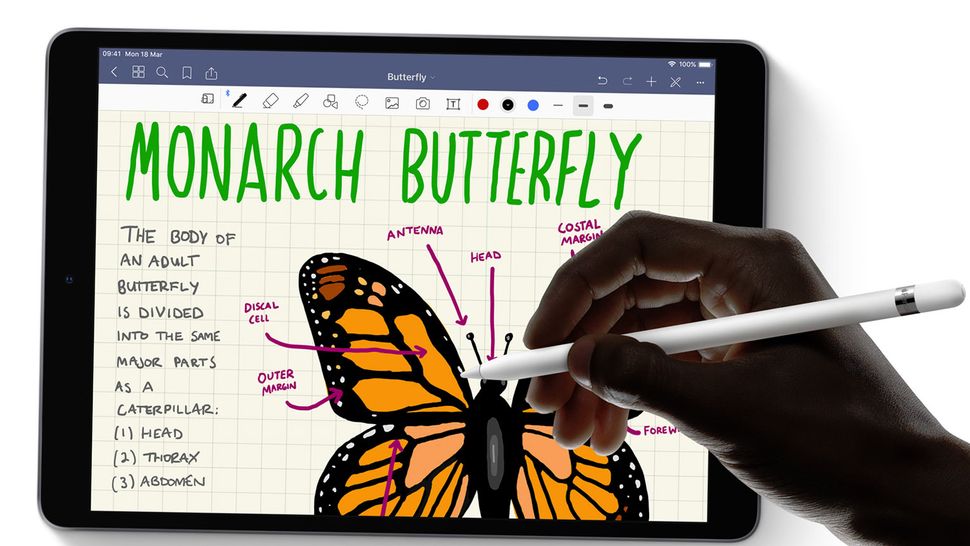
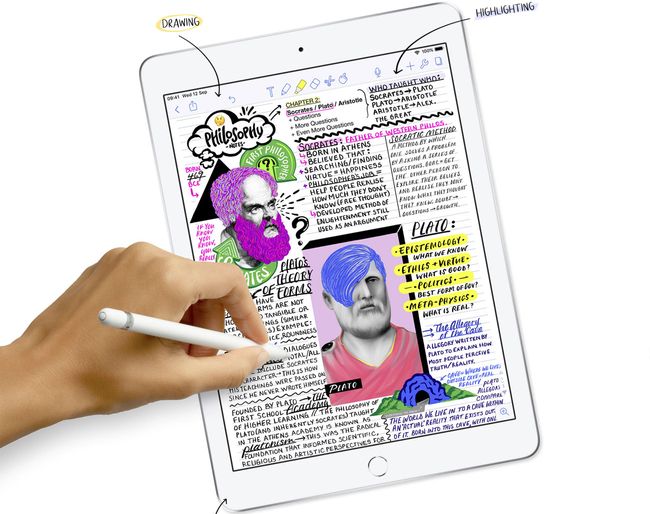
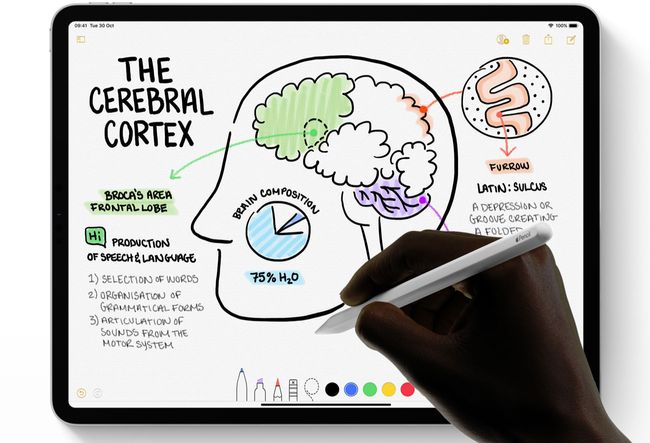
It's hard not to love the Apple Pencil. It's one of the best styluses we've ever used, and it provides an impressively natural drawing experience. The only problem with it is that until recently you needed an iPad Pro to use it; Apple launched a 9.7-inch iPad with Pencil support last year, but the rest of the range remained Pencil-less.


That is, until today. Apple has just announced a bunch of new iPads, and they all support the Pencil. Now, whatever size iPad you prefer, you're able to sketch and draw to your heart's content with one of our favourite styluses.


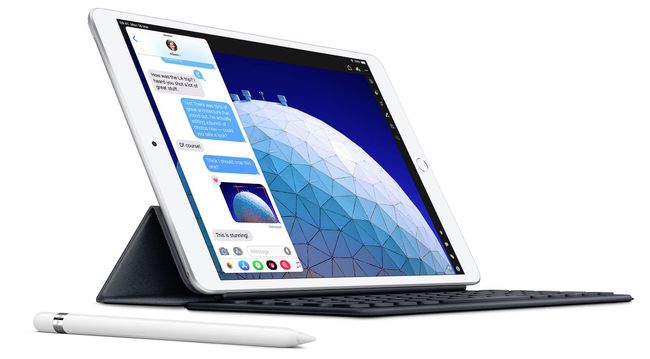
Top of the range is the new iPad Air. We're big fans of this lightweight, super-slim model with its ultra-thin bezel, and the latest version has us rather excited.

The new iPad Air runs off the same A12 Bionic chip found in the iPhone XS, making it perfect for all the best drawing apps for iPad. It also features Touch ID and a choice of 64GB or 256GB storage. Like the rest of the iPad range it comes in both Wi-Fi and cellular flavours, with prices starting at $499/£479 for the 64GB Wi-Fi model and going up to $629/£749 for the 256GB cellular option.


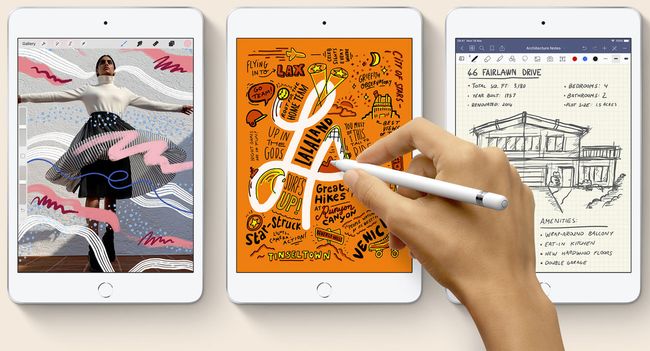
Hold on, though, because there's another option that's almost as thrilling. After being a little neglected for the past few years, the iPad Mini has had an update, and it could be just the thing if you want a digital sketchpad that fits in your pocket.

On top of its Pencil support, the new Mini has a 7.9-inch Retina display and also uses the A12 Bionic chip, making it a punchy little contender. Again it comes with Touch ID and a choice of 64GB or 256GB storage, and it's available now at a great price: the basic 64GB model with wifi will cost you just $399/£399, while the top-end 256GB cellular model will set you back $679/£669.


Finally, there's an updated 9.7-inch iPad, but it doesn't have us quite as enthralled as the other two. It only packs an A10 Fusion chip – no slouch, but it's not the A12 – and up to 128GB storage, but on the plus side its 32GB Wi-Fi model is great value; you can get it today for $329/£319, while the 128GB cellular version will cost you $559/£539. If you want a 'budget' iPad then this is definitely the way to go.


One thing to bear in mind with these new iPads is that they only support the 1st generation Apple Pencil (read our Apple Pencil review here). If you want the swanky new features of the 2nd gen model such as wireless charging, we're afraid you're still locked into the iPad Pro.

All the new iPads are available to order today, and if you have an old one knocking about that you're not going to need any more, Apple now offers trade-ins, enabling you to knock a chunk off the asking price of that sweet new iPad Air. Now if you'll excuse us, we have to go and check our bank balances.
Share:

12 Mac shortcuts every designer should know

A Mac shortcut is a combination of keys that, when pressed together on an Apple device, perform an action that would otherwise require a more complicated set of actions. Getting a handle on Mac shortcuts is a simple and practical way to streamline the design process, as along with all the basic shortcuts that are integral to any computer work (copy, paste, cut, and so on), Macs boast a host of less well-known examples that lie bubbling beneath the surface.


For designers, tapping into these should be as instinctual as breathing, using learned muscle memory. But that doesn't mean that every designer is getting the most out of their Mac. We have collated twelve of the most useful Mac shortcuts, which should help every designer speed up their workflow and impress their colleagues.

And if you love saving time and are after more shortcuts, then don't miss our post on top Photoshop shortcuts.

01. Close window (Command + W)

When working over a slew of different documents at the same time, it can be a great timesaver to get rid of unwanted windows using the Cmd + W shortcut, rather than clicking on the red dot in the top corner. Unlike the Quit option, Cmd+ Q, this option only closes the window you’re currently working on, keeping the program running along with any other files you have open.

02. Bring up info (Command + I)

The Cmd + I shortcut gives access to the Info dialogue box, which provides a brief overview of the properties of a file or folder, including its size, when it was first created and any metadata (relevant when checking photos). It's also the place you can find the option to designate the file a default program to open with, saving lots of hassle in the long run.

03. Quicklook (Spacebar or Command + Y)

The modern world moves at an increasingly fast pace and it’s sometimes frustrating to wait for an image to open in Photoshop CC. Macs have a preview feature called Quick Look, which gives you a fast, full-size preview of the image without having to rely on alternative software. Inspect your image – or images (in slideshow format) – by pressing Spacebar or Cmd + Y. In the latest version of OS, Quick Look also offers limited editing powers.

04. Mission Control (F3 or Control + Up)

Like a commander surveying their battlefield, designers have the option to take a bird’s eye view of all open applications in Mission Control and move smoothy between them. Switching between different windows becomes a doddle with this shortcut – press either F3 or Ctrl + Up to bring up the spread of applications and choose between them.

05. Go to desktop (Command + F3)

Over the working day, your screen can become rapidly clogged with a multitude of windows, leaving the time consuming task of mini missing or moving them to get back to the desktop. Dive through the clutter with the invaluable shortcut Cmd + F3 to immediately show the desktop, pushing all open windows aside.

This also provides an effective method for quickly saving an image from a web browser to your computer, by clicking on the image, using this shortcut, then dragging and dropping straight onto your desktop. An alternative method for achieving the same goal is by setting up a Hot Corner in the System Preferences, Desktop tab. This will allow you to access the desktop by moving the mouse cursor to that corner.

06. Duplicate a file or folder (Option + drag)

You’ll never resort to using copy and paste again, once you’ve tried this nifty time-saver. Simply click on the file you wish to duplicate, hold down the Opt and drag it away, to create an identical copy. You can do this with multiple files at once and also duplicate from one folder to another.
07. Create a New Folder (Command + Shift + N)

Since everything on a Mac is organized into folders, the creation of new ones is a regular task that prevents files proliferating out of control. Pressing Cmd + Shift+ N will immediately create a new folder and highlight the filename to type into. This is especially useful when viewing files as columns, where it’s difficult to find a place to right-click and bring up the New Folder option.

08. Screenshot a specific area (Command + Shift + 4 then drag)

When taking a screenshot with Cmd + Shift + 3, your Mac captures your entire screen, warts and all, and saves onto your desktop. To grab a specific area of the screen, without having to crop anything afterwards, press Cmd + Shift + 4 to bring up a crosshair, then simply drag it over the area you desire and let go.

09. Show/Hide Dock (Command + Option + D)

On a Macbook, it’s a constant struggle to squeeze as much out of your screen as possible. Depending on your preference, you may view the dock as a strip of pixels wasting valuable space. By pressing Cmd + Opt + D, you can hide the dock when you want the whole screen to work with, then use the same combination to bring it back when you’re done.

10. Force Quit (Command + Option + Escape)

When your Mac drops the ball and stops responding altogether, Force Quit might be your only option – once you’ve stopped screaming. Pressing Cmd + Opt+ Esc will bring up a window displaying all the currently active apps, where you can select one to Force Quit. Once the application is closed, you can reopen it and pray you haven’t lost much work.

11. Screen Mirroring (Command + Brightness Down)

Many creatives use two screens to increase productivity, often having multiple windows open simultaneously across both. But on certain occasions, such as presentations, it is necessary to use screen mirroring, where the external screen mirrors the content displayed on the Mac screen. Pressing Cmd + Brightness Down will toggle screen mirroring on-and-off, and takes a few seconds to sync.

12. Reopen the previous tab (Command + Shift + T)

With a mere slip of the hand, you could find a tab suddenly disappearing before your eyes, along with that tutorial it took you hours to find. There’s no need to panic. To open up a previously-closed tab, in any of the leading browsers, press Cmd + Shift + T. As if by magic, the old tab appears and you can get straight back to work as if nothing happened.
Share:

Popular Post

Web Design

5 Quick-fire portfolio tips from design experts

Your design portfolio is one of your most useful tools. It can win you commissions, help you snag a new design job, attract collaborators, a...

Labels

Most view post